Bring in customers from a spreadsheet, your phone, Google Contacts or Outlook. You always see a preview before anything is saved.
You should never have to type your customers in again. The importer takes two kinds of file: a CSV (what any spreadsheet can save) and a vCard, the .vcf file that phones and address books export.
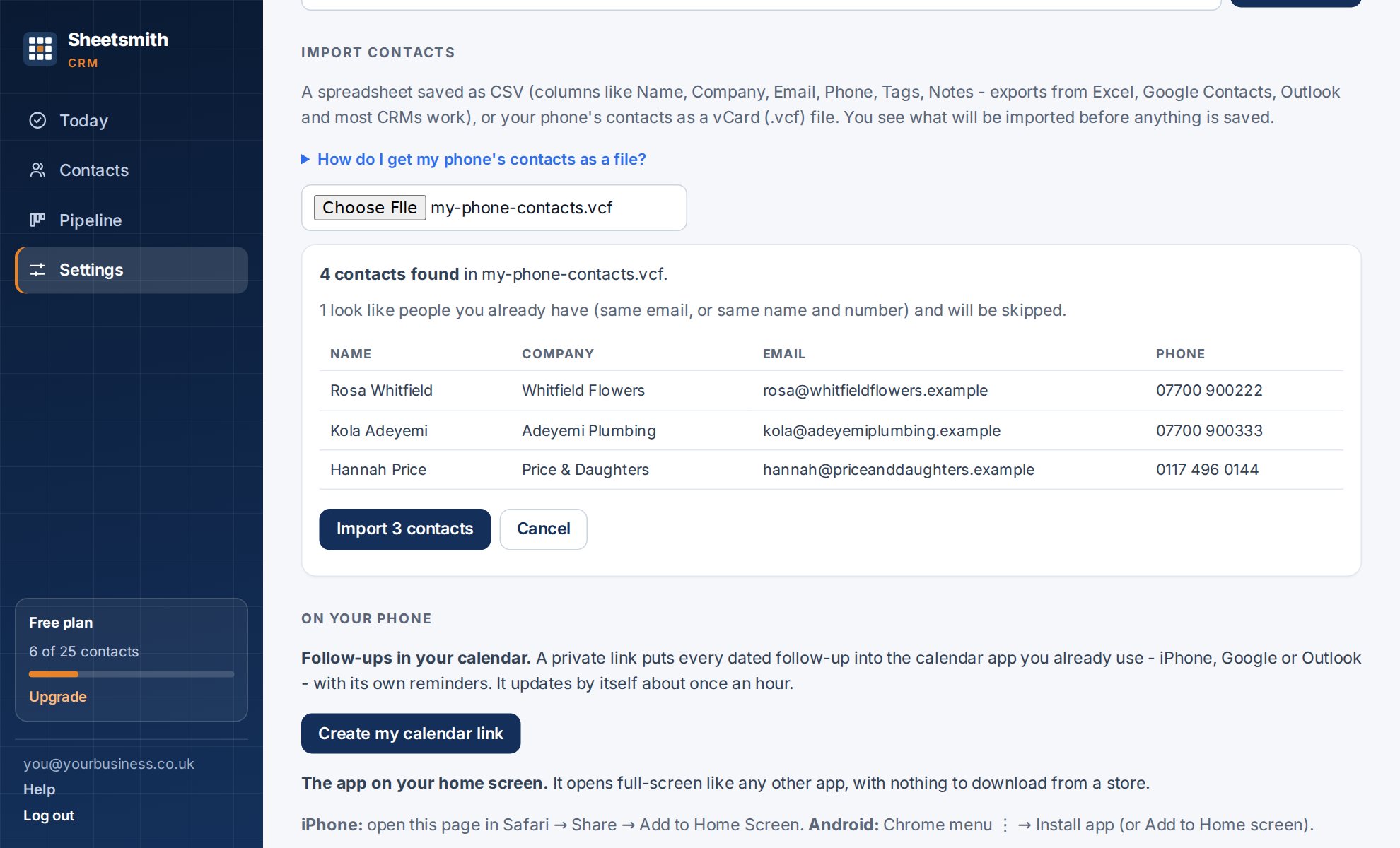
The preview tells you:
Large files are imported steadily, a few contacts a second, and the button shows progress. You can import up to 5,000 rows at a time.
From a spreadsheet (Excel, Google Sheets, Numbers): File → Save as / Download → CSV. The first row must be headings.
From an iPhone: Contacts → Lists → press and hold All Contacts → Export. Save the file or send it to yourself, then choose it in the importer.
From an Android phone: Contacts → Fix & manage → Export to file.
From Google Contacts: contacts.google.com → Export → vCard (or Google CSV, both work).
From Outlook: People → Manage contacts → Export, which gives you a CSV.
From another CRM: export contacts as CSV.
| Goes into | Headings that work |
|---|---|
| Name | Name, Full name, Display name, Contact, Client, Customer. Or separate First name and Last name (or Surname) columns |
| Company | Company, Company name, Organisation, Organization, Business |
| Email, E-mail, Email address, E-mail 1 - Value | |
| Phone | Phone, Telephone, Mobile, Mobile phone, Tel, Phone number, Phone 1 - Value, Business phone |
| Tags | Tags, Tag, Type, Category, Categories, Labels |
| Notes | Notes, Note, Comments |
Capital letters do not matter. A row needs a name; if there is no name but there is a company, the company is used as the name.
Next: Follow-ups and keeping in touch
Read it Sheetsmith