BCC a private address on the emails you send, or forward the ones you receive, and they appear on the customer's timeline. Nothing is sent back and nothing is read that you did not send us.
Most of the conversation with a customer happens in email, and a CRM that does not know about it is always a step behind. You do not have to connect your mailbox or give us a password. The CRM gives you one private email address; anything you send to it lands on the right contact.
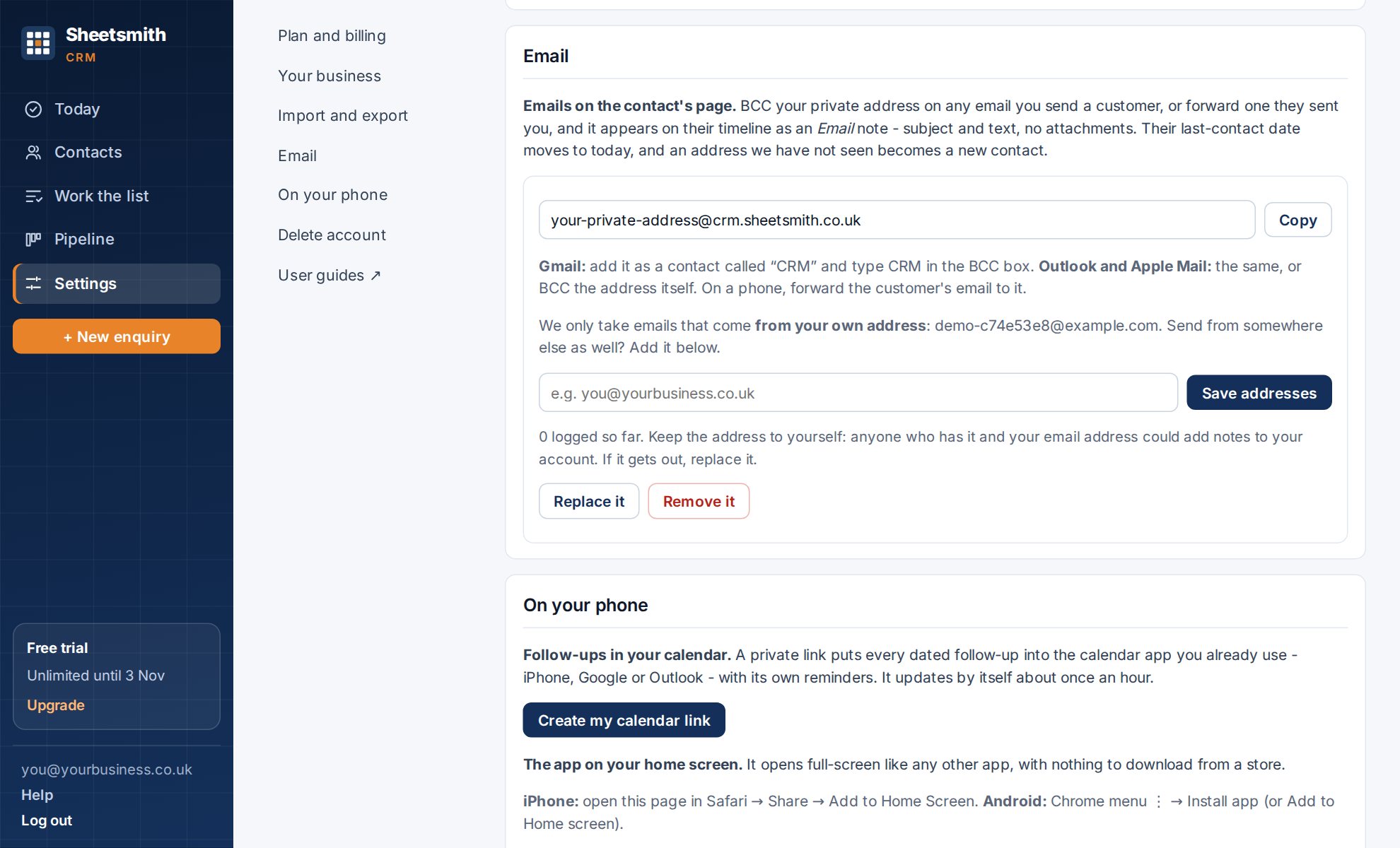
In Settings → Email, press Create my email-in address. It looks like k7m2p9q4x1zdrw@crm.sheetsmith.co.uk. Save it as a contact in your email app called CRM, so you can type "CRM" in the BCC box.
The account owner creates it, and it is one address for the whole account: everyone on a Team account uses the same one.
Either way the customer's last contact date moves to today, so Gone quiet stays right. If the customer's address is not in your contacts yet, a new contact is created from it, with the source Email. Several customers on one email each get the note.
What is kept: the subject and the text of the email, up to about 3,000 characters, with the quoted thread underneath a reply left out. Attachments are not stored; their names are listed on the note. The email itself is deleted as soon as it has been logged.
The CRM only accepts emails sent from your own address: the one you log in with, or the addresses of the people on your account. Anything else is ignored without a reply. If you log in with one address but send email from another, say a Gmail login and a business domain, add the sending address under Settings → Email → Save addresses. Up to five.
The address is private. Anyone who has it and can send email as you could add notes to your account, which is why it is only shown to the owner and why there is a Replace it button. Replacing it makes a new address and the old one stops working at once; update the contact in your email app. Remove it turns email-in off; emails to it then bounce.
The count under the address in Settings shows how many emails have been logged, and how many could not be matched. The usual reasons:
Nothing is ever sent from the address, and it never replies, so a mistyped BCC costs you nothing but the note.
Next: Deals and the pipeline
Read it Sheetsmith